RTMP Cross-Streaming Guide
Broadcast your TapIn stream across multiple platforms at once using RTMP (Real-Time Messaging Protocol) to expand your reach.
Quick Tips: Double-check you’ve copied the full stream key and allow a few seconds for the preview to load.
TapIn RTMP Settings on Desktop
1. Open the Event Details
Click the session title in the upper-left corner of your live session on desktop to open settings.
2. Enter Stream
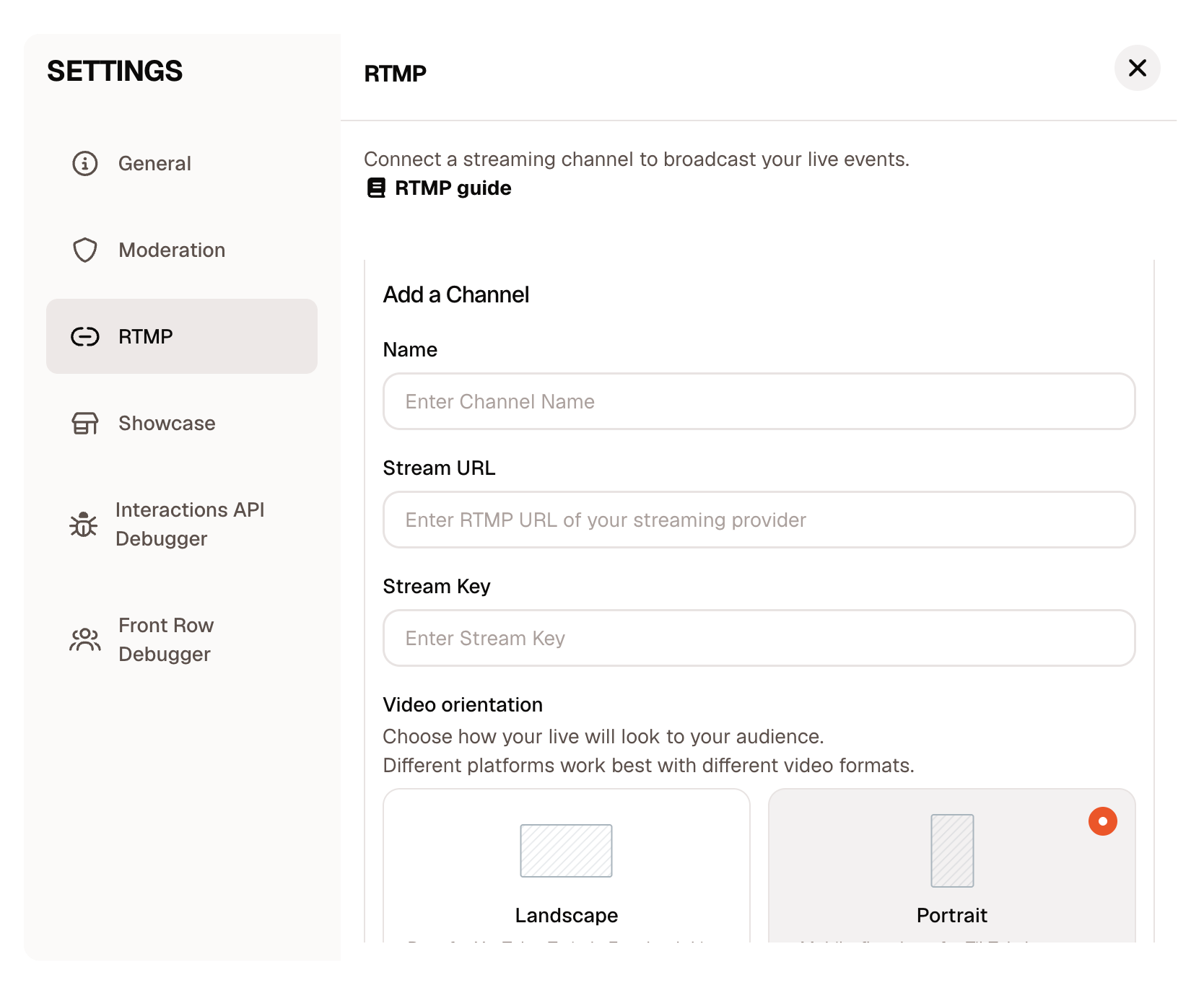
Scroll to RTMP on the left menu and fill out the fields.
3. Enter Stream Info
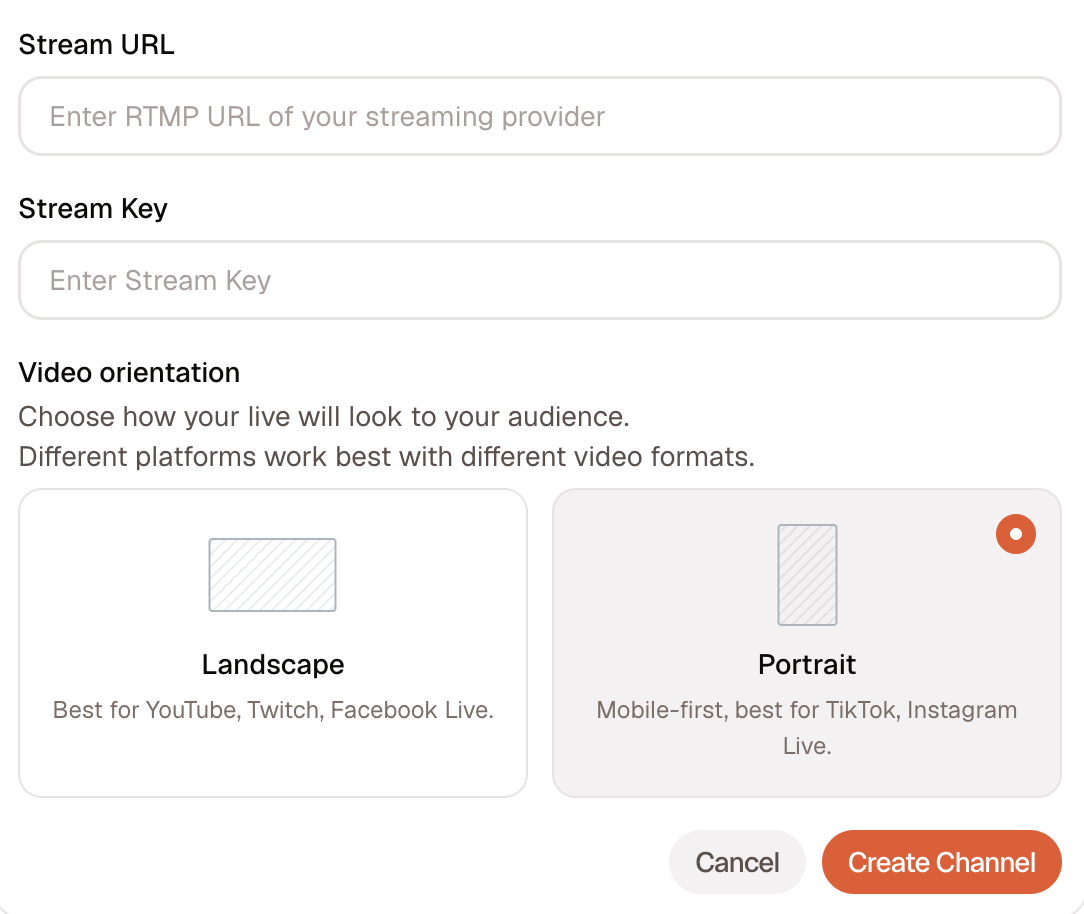
Paste your Stream URL and Stream Key, select video orientation, then click Create Channel.
Tip: The Stream URL is the server address. The Stream Key is your unique ID for that platform.
-
Stream URL: rtmp://live.twitch.tv/app
Stream Key:Go totwitch.tv and log into your Twitch account.
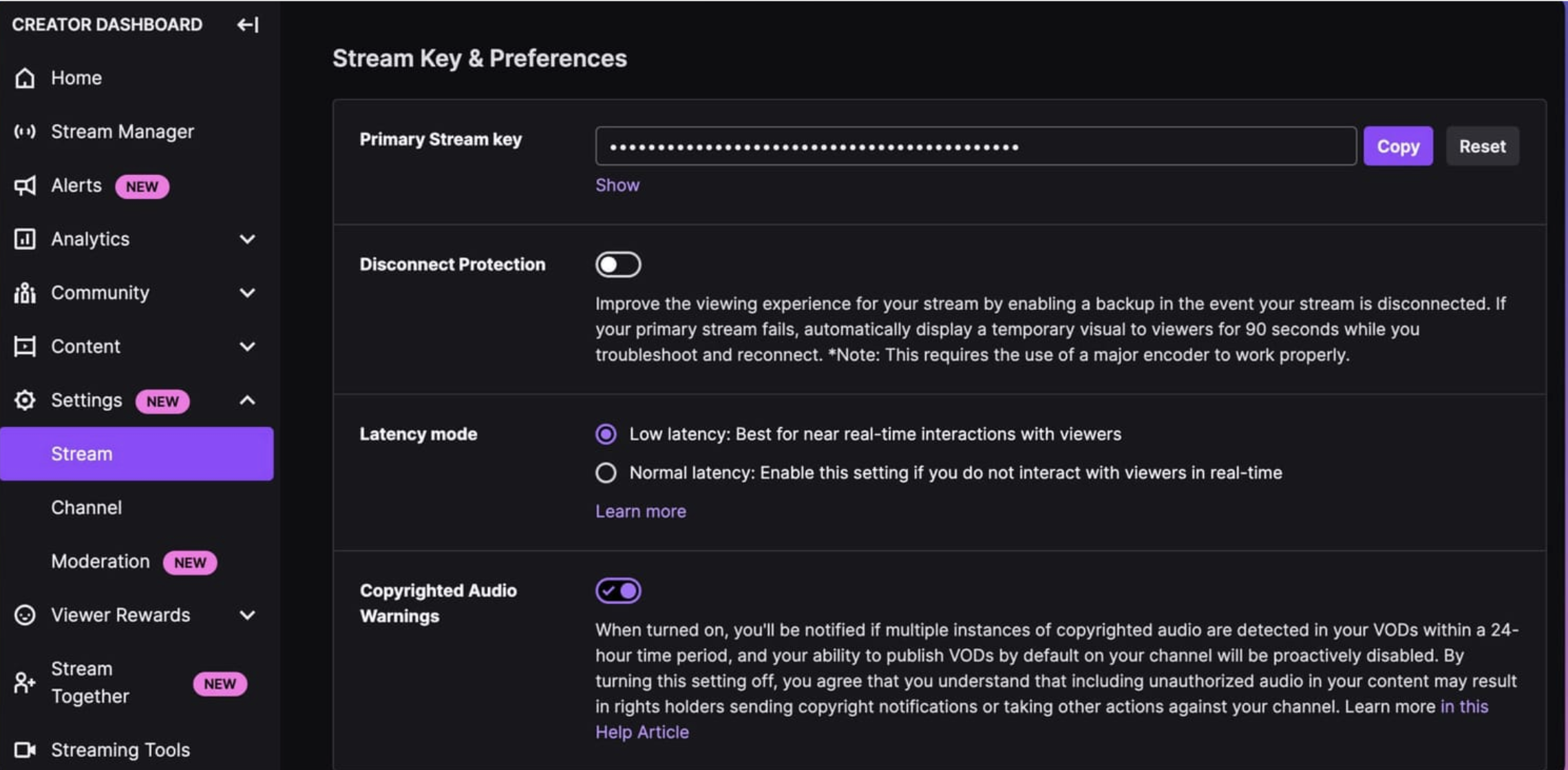
Click on your profile in the top right corner and select Creator Dashboard.
Pop out the Creator Dashboard menu on the left side.
Click Settings.
Click Stream.
Copy and paste your stream key into TapIn.
-
Stream URL: rtmp://a.rtmp.youtube.com/live2
Stream Key:
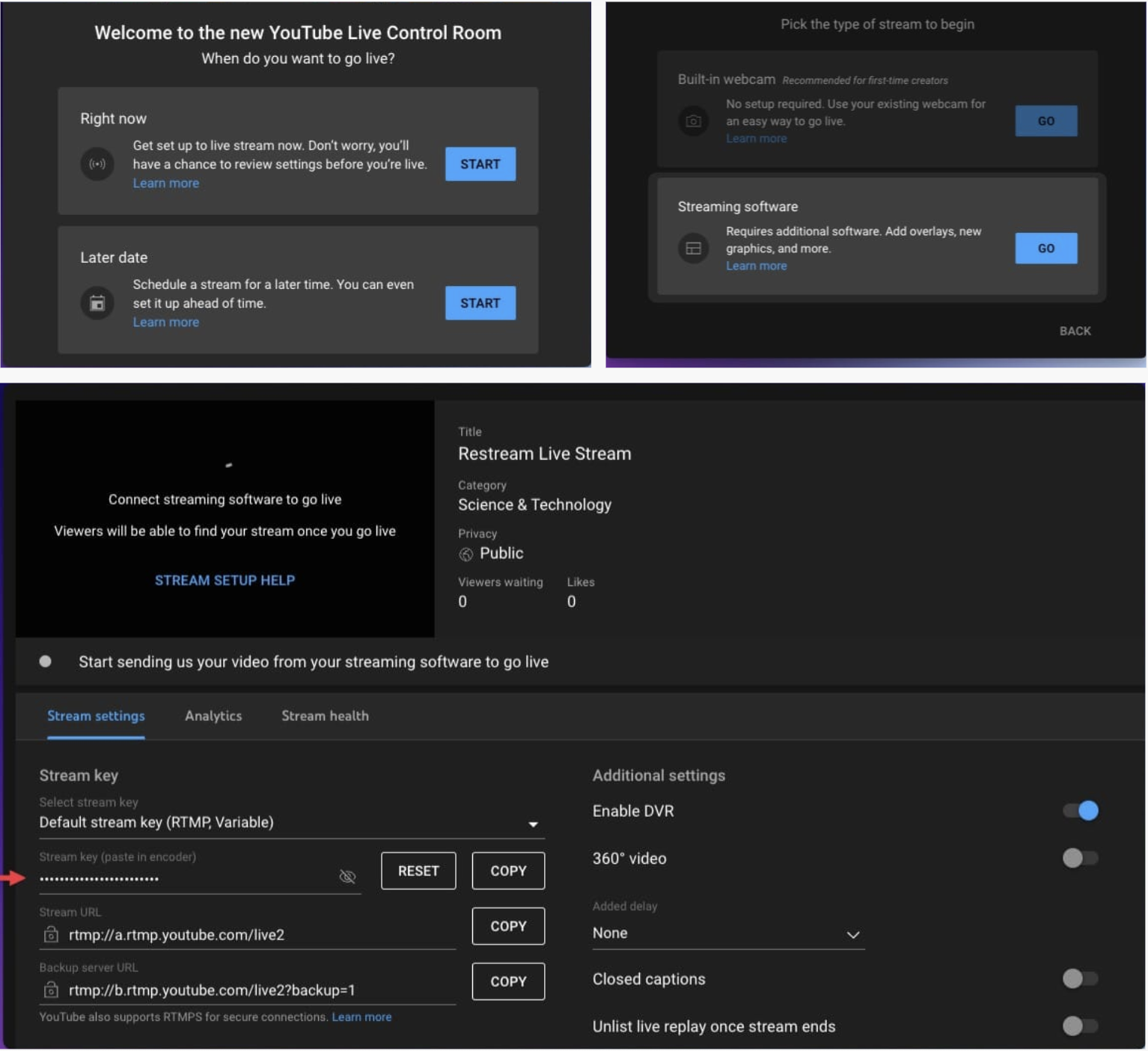
Access the YouTube studio by going tostudio.youtube.com. Make sure you’re signed into the channel you want to broadcast to.
On your Channel Dashboard, click on the Create button in the top right corner and select Go live from the list.
Click Start next to the Right Now (or Later Date for scheduled stream.)
Click Go next to Streaming Software
You’ll see a screen with settings for your stream. Under Stream Settings, you’ll see your stream key, which you can reset or copy.
Copy and paste your stream key into TapIn.
-
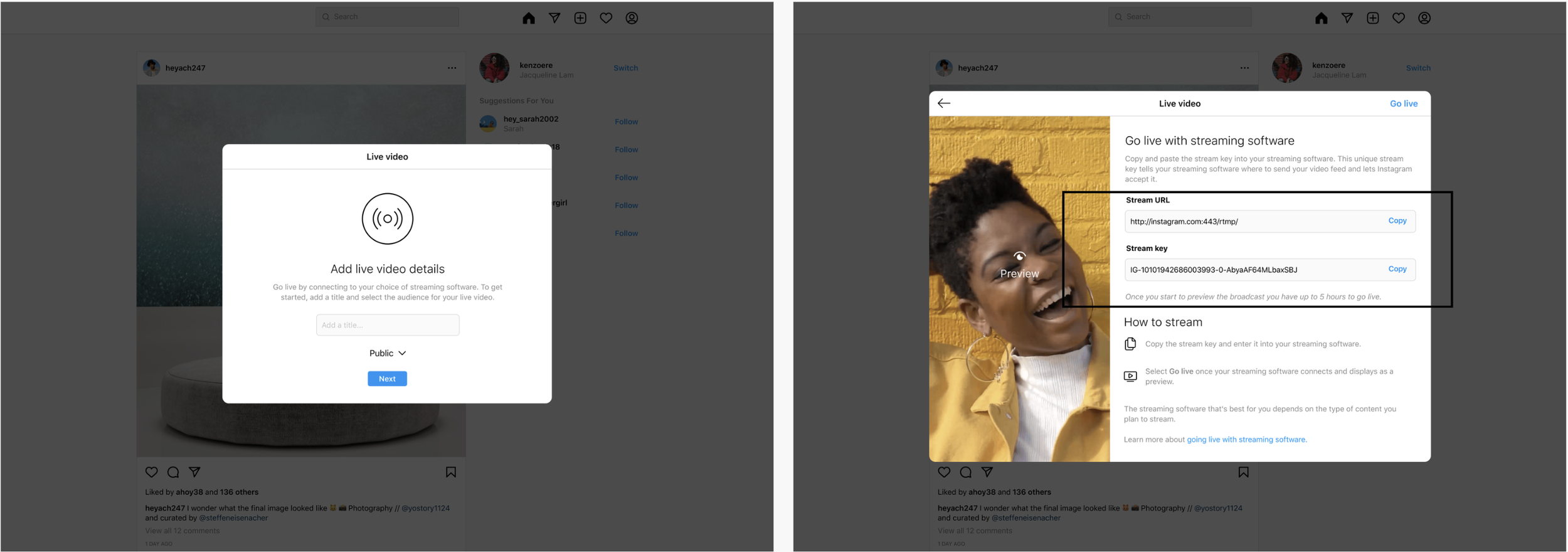
Open instagram.com on desktop and click the Create button (the plus symbol inside a square). Select “Live” from the dropdown menu.
On the Go Live screen, enter the title of your live video and select your audience:
Practice → will not broadcast to anyone.
Public → will broadcast as a normal live video.
Audience → will broadcast as a normal live video just to your audience
You’ll then see a screen with your unique URL and stream key, plus instructions on how to use them.
Copy and paste your stream key and URL into TapIn.
Once you’ve set up your stream in TapIn, start it.
In the Live Producer viewer on instagram.com, you’ll see a preview of your stream.
The preview should mirror what you’ve set up in TapIn.
It may take a few seconds to display.
After confirming the preview, click Go Live in Live Producer to start the stream.
To finish, click End live video.
-
You’ll typically need at least 1,000 followers to unlock the RTMP option on TikTok.
How to check if you qualify:
Open the TikTok app and tap the plus (+) button at the bottom to create a new post.
Swipe over to the LIVE option.
If you’re eligible for desktop streaming, you’ll see three choices: Device Camera, Mobile Gaming, and Live Studio. If Live Studio appears, you can stream to TikTok from your desktop.
If qualified:
Tap the plus (+) button and swipe to the right to where you’d normally go live.
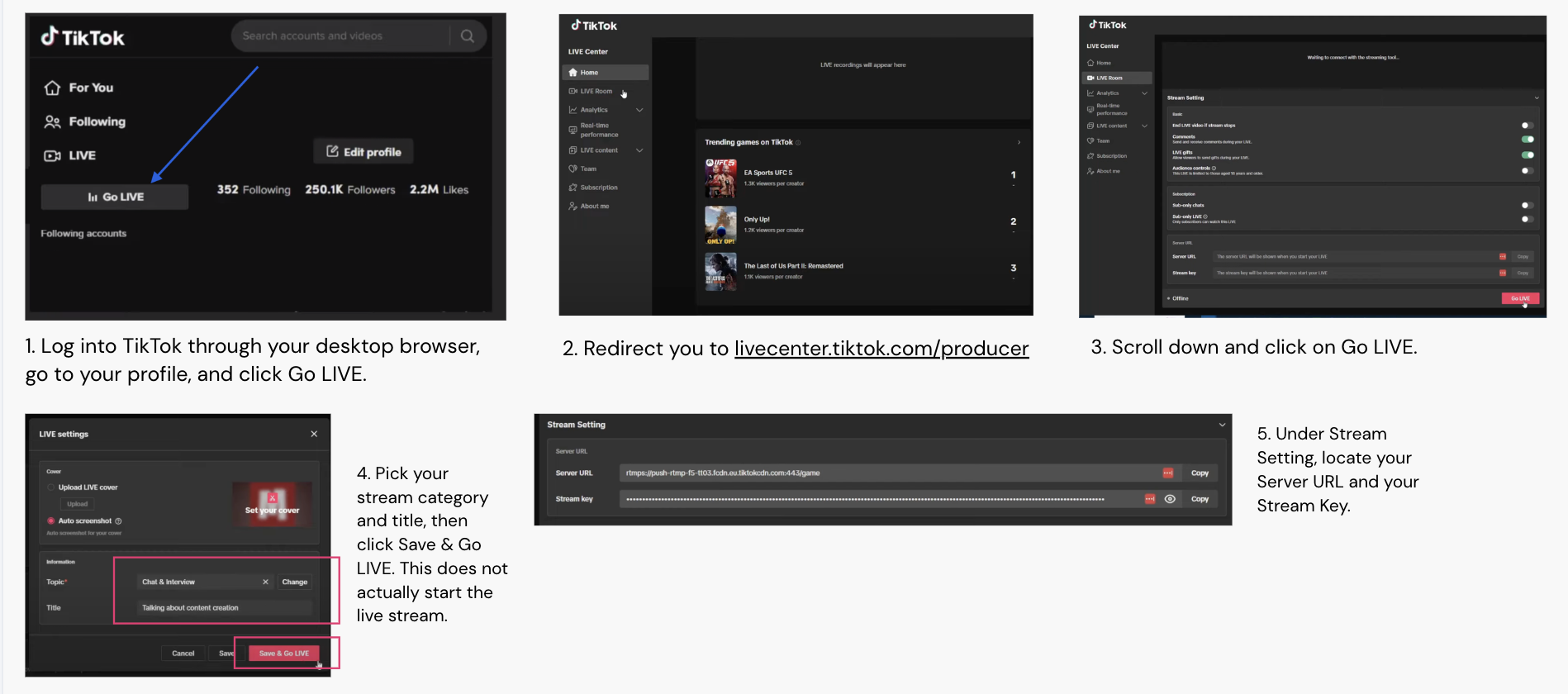
If unlocked, you’ll see the option “Transfer to PC/Mac.”
Click Start Live.
TikTok will display your RTMP server URL and Stream Key.
-
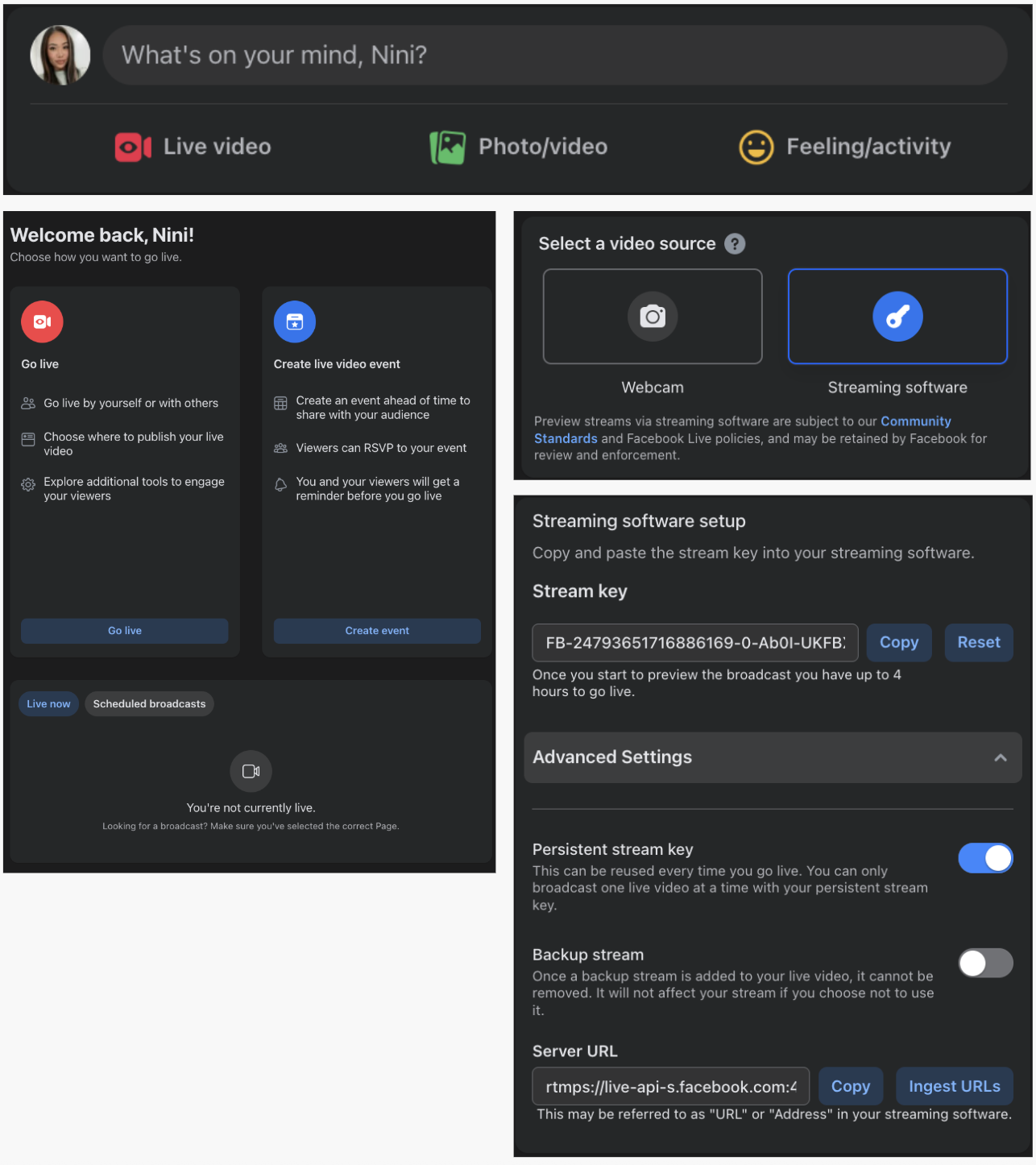
Login to your Facebook account.
Create a new post and click on the Live Video option.
In the go live or create event section click Go Live.
In the “Select a video source” section, click on Streaming Software.
Facebook will display a Stream Key.
Expand the Advanced Settings section to reveal the Server URL.
Copy and paste your stream key and URL into TapIn.
Instructions by Platform
Twitch
Youtube
TikTok